Install Msys2
- Download and Install MSYS2: Follow the installer on their site.
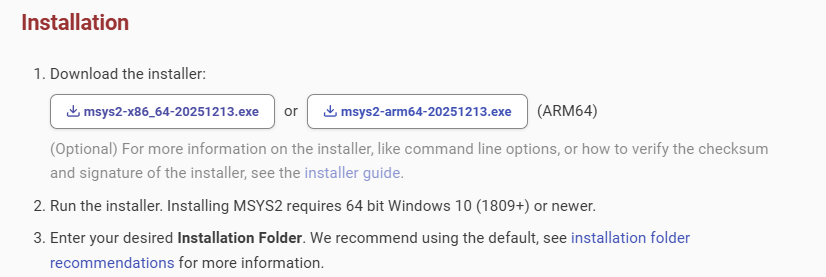

This Installation Folder is important, please remember of it
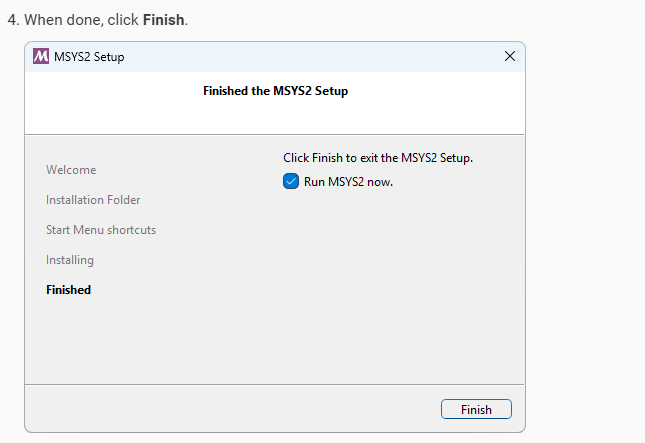
Install Cobol Compiler
Search for it in your Start menu.
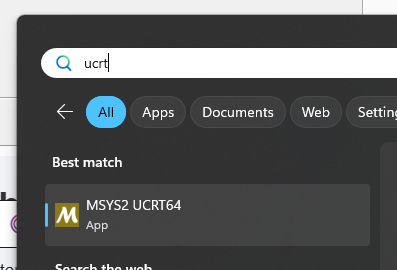
Run the update command:
pacman -SyuInstall GnuCOBOL:
pacman -S mingw-w64-ucrt-x86_64-gnucobolAdd to Path
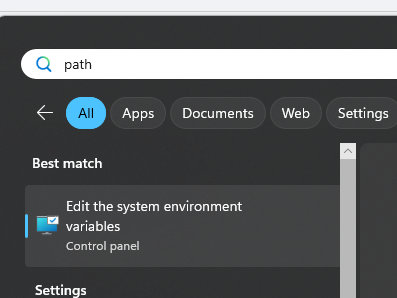
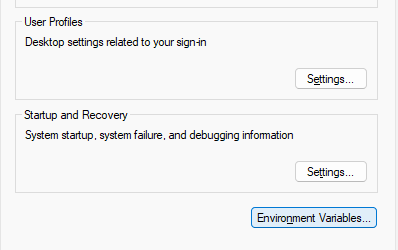
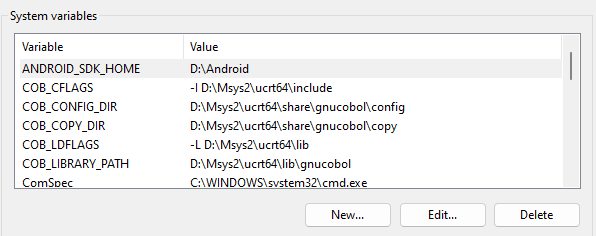
- Find “Path” and Edit:
- Add the installation folder and cobol suffix for it, for example if you install in C:\msys64 as default, you can use C:\msys64\ucrt64\bin
- Optional (For run compiler in Window Terminal)
- Use new… button and add new (Variable Name: Variable Value)
COB_CONFIG_DIR: C:\msys64\ucrt64\share\gnucobol\configCOB_COPY_DIR: C:\msys64\ucrt64\share\gnucobol\copyCOB_LIBRARY_PATH: C:\msys64\ucrt64\lib\gnucobol
- Use new… button and add new (Variable Name: Variable Value)
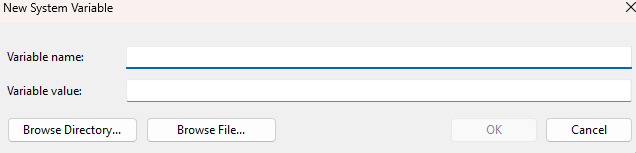
Now you can run your cobol program
| Goal | Command | Result |
| Quick Test | cobc -x -j file.cbl | Runs immediately; no permanent .exe kept. |
| Build App | cobc -x file.cbl | Creates file.exe to run anytime. |
| Build for Python | cobc -m file.cbl | Creates a .dll library for Python to call. |
| Check Errors | cobc -f syntax-only file.cbl | Only checks for code errors without building. |

Common Error
: fatal error: libcob.h: No such file or directory
10 | #include <libcob.h>
| ^~~~~~~~~~
compilation terminated.
The error fatal error: libcob.h: No such file or directory means the COBOL compiler (cobc) found your code, but the C compiler (which GnuCOBOL uses under the hood) can’t find the necessary “header files” to finish building the program.
Adding these to Environment Variables like previous step
| Variable Name | Variable Value |
COB_CFLAGS | -I D:\Msys2\ucrt64\include |
COB_LDFLAGS | -L D:\Msys2\ucrt64\lib |
-I(Include): Points to the folder containinglibcob.h.-L(Library): Points to the folder containing the actual library files (.libor.a).
Or a quick command if you not want add it:
cobc -x -j TEST-PROGRAM.cbl -I D:\Msys2\ucrt64\include -L D:\Msys2\ucrt64\libnanosleep64 could not be located
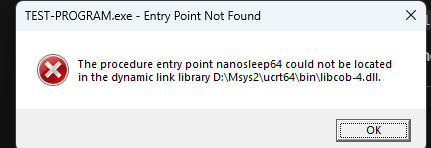
If you got (nanosleep64 could not be located) may indicate: your system is confused between two different versions of the C compiler.
The nanosleep64 error is a classic sign that a program compiled with one Windows runtime (like UCRT) is trying to link with an incompatible version of a library.
You could run this command
where gccIf the output show more than one directory path, it may appear your computer have 2 installed GCC place
To solve this:
You need to tell Windows that the D: drive tools are the priority.
- Search for “Edit the system environment variables” in your Start Menu and open it.
- Click Environment Variables.
- In the System variables (bottom) list, find the one named Path and click Edit.
- Find
C:\Msys2\ucrt64\binin the list. (the path you added in installation step) - Click the “Move Up” button repeatedly until it is at the very top of the list (above
the other bin directoryin where gcc command). - Click OK on all windows.
Close your current Command Prompt and open a new one for the change to take effect.
Alternative Way:
cobc -x -j TEST-PROGRAM.cbl -conf="D:\Msys2\ucrt64\share\gnucobol\config\default.conf"